 Citenook1
Blog · Guides
How to summarize a PDF with AI, with or without uploading it
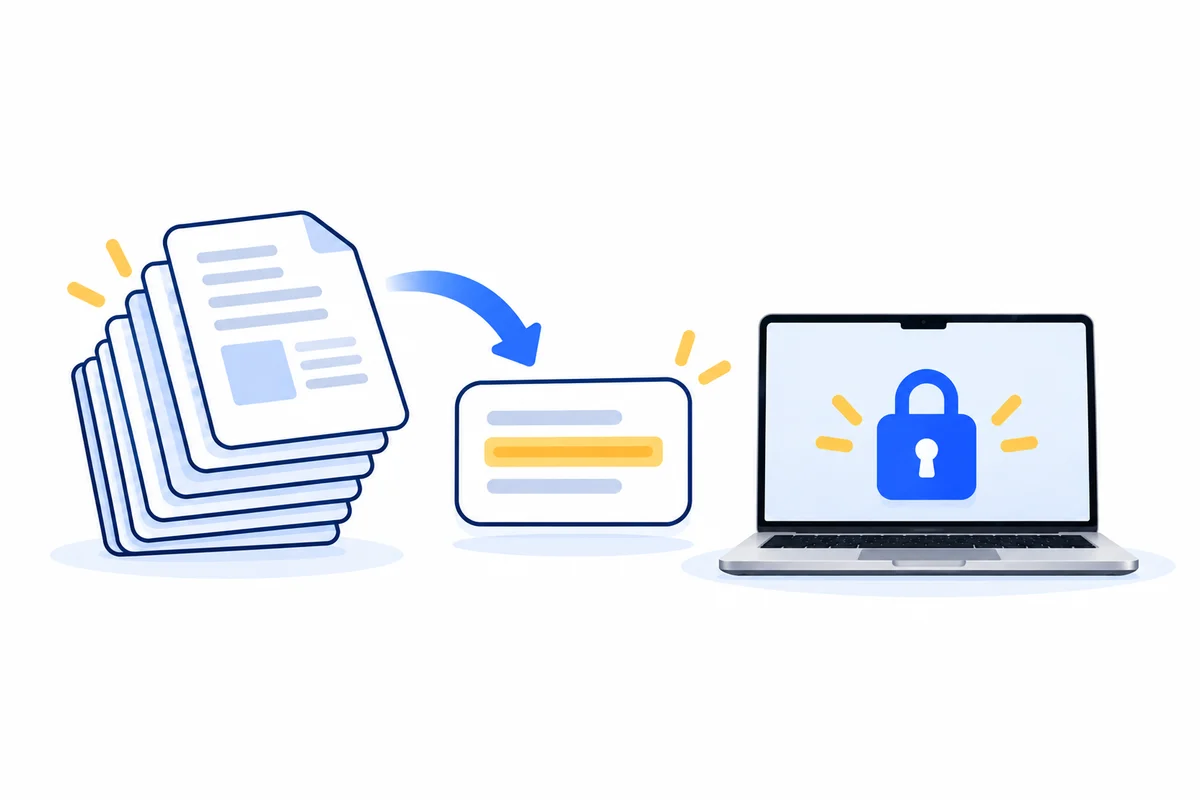
To summarize a PDF with AI, upload it to a tool like ChatGPT, Claude or Adobe Acrobat's AI Assistant and ask for a summary, or run a model on your own computer so the file never leaves it. Online tools are quick but keep your file on their servers for a while. For contracts, client files or anything confidential, a local option is safer, and on a Mac it works offline.
This guide compares the main ways to summarize a PDF, where your file goes with each one, how to get a summary you can trust and what to do with long or scanned PDFs. Facts come from OpenAI's, Anthropic's, Adobe's and Apple's own pages, checked on 12 October 2026.
Ways to summarize a PDF with AI
| Tool | Where your PDF goes | Limits | Good for |
|---|---|---|---|
| ChatGPT | OpenAI's servers; kept with your chats | 512 MB per file; most plans read only the text | Quick summaries of non-confidential files |
| Claude | Anthropic's servers | 500 MB, up to 1,000 pages; charts and images read only up to 100 pages | Long reports and books |
| Adobe Acrobat AI Assistant | Adobe's cloud, using Microsoft's Azure OpenAI; deleted after 12 hours | Paid add-on | People who already work in Acrobat |
| Apple Writing Tools | On your Mac, or Apple's Private Cloud Compute for bigger requests | Works on selected text, not a whole file | A few pages at a time |
| A model on your Mac (LM Studio, Citenook) | Nowhere; it stays on your Mac | Smaller models; needs Apple silicon | Contracts, client files, anything private |
Summarizing with ChatGPT, Claude or Acrobat
- Open the tool and attach the PDF.
- Ask for the kind of summary you need (see the prompts below).
- Ask follow-up questions about the parts that matter.
Things to know before you upload:
- ChatGPT keeps uploaded files in your account until you delete them, and on the Free, Go, Plus and Pro plans your chats can be used for training unless you turn off "Improve the model for everyone". On most plans it reads only the text of a PDF, skipping charts and images, and it searches long files rather than reading them whole. Our guide to ChatGPT's upload limits has the details.
- Claude accepts PDFs up to 1,000 pages. It looks at charts and images in PDFs of 100 pages or fewer; longer ones are read as text only.
- Acrobat's AI Assistant sends the document to Adobe's cloud, which uses Microsoft's Azure OpenAI service. Adobe says it doesn't train on your content and deletes the document, prompts and answers after 12 hours, except chat history you keep.
Summarizing on a Mac without uploading
For a few pages: Apple's Writing Tools. If your Mac has Apple Intelligence, open the PDF in Preview, select the text, Control-click it, choose Writing Tools, then Show Writing Tools, and click Summarize or Key Points. It's built in and free, but it works on what you select, so it's awkward for a 40-page document. Apple sends bigger requests to its Private Cloud Compute servers, which it says don't store your data.
For whole files, offline: a model on your Mac. Apps like LM Studio let you attach a PDF to a chat with a model running on your Mac, with Wi-Fi off. For long files they pick out the parts that seem relevant, which LM Studio's docs say "sometimes requires some tuning and experimentation". How to run AI offline on a Mac walks through the setup.
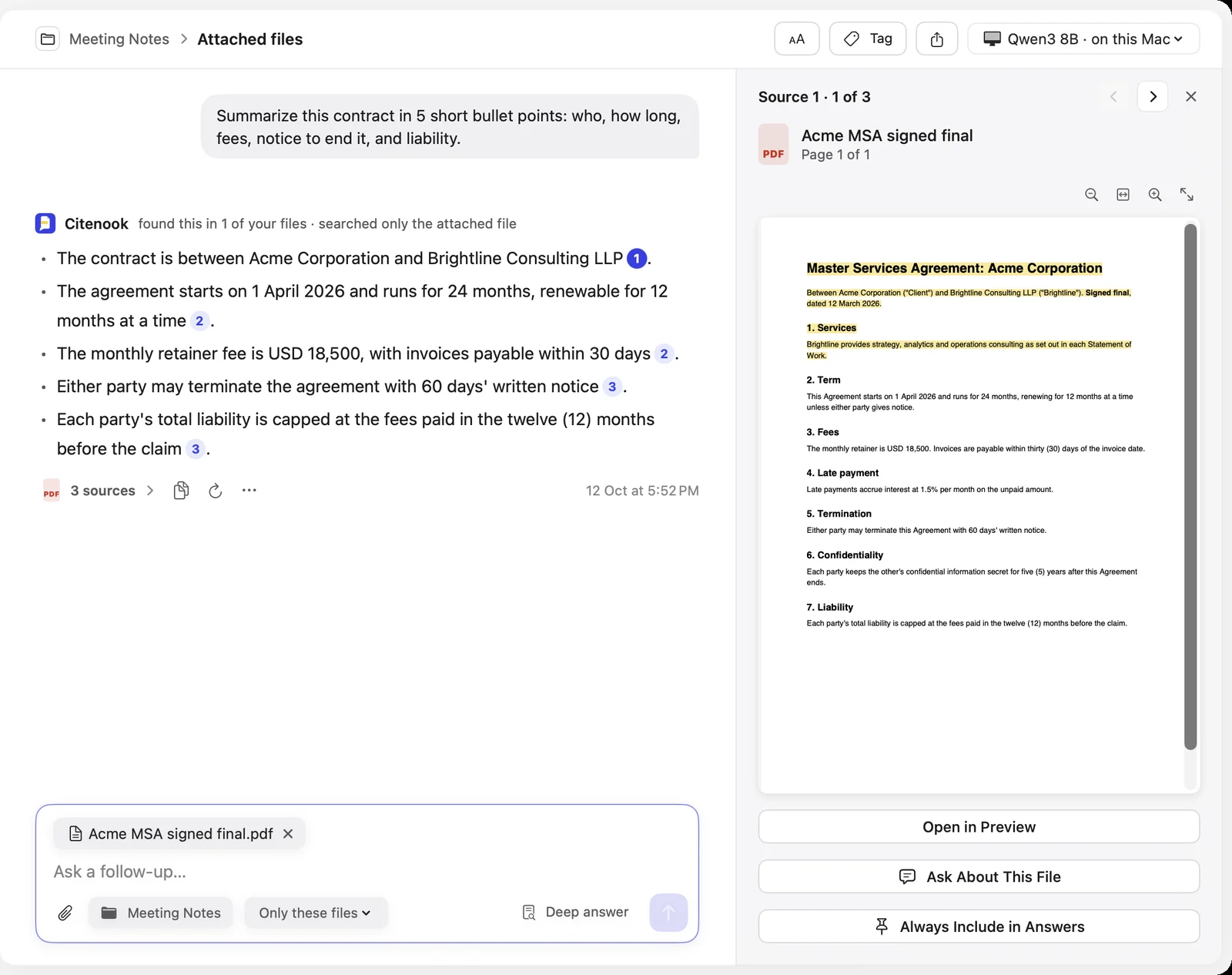
For confidential files with proof: Citenook. Attach a PDF to a chat (or a whole folder of them) and ask for a summary. A model on your Mac writes it, and every point links to the sentence it came from, so you can check it in a click. Here it is summarizing a sample contract with Qwen3 8B running on the Mac:
Prompts for better summaries
- "Summarize this in 5 bullet points: who, what, when, how much, and any deadlines."
- "List every date and amount in this document, with the page it's on."
- "What are the three most important things a busy reader needs to know?"
- "Summarize section 4 only."
- "What does this document say about termination? Quote the exact sentence."
- "Write a one-paragraph summary for a client who isn't a lawyer."
Specific prompts work better than "summarize this", especially with smaller models running on your computer.
How to check an AI summary
- Check numbers and dates against the page. A summary can drop a word like "not" or swap a figure. Look up anything you'll act on.
- Watch for what's missing. Summaries leave things out. Ask "what does it say about X?" for anything you expected to see.
- Prefer tools that show the source. A summary that points to the exact sentence takes seconds to check; one that doesn't means rereading the file.
Long and scanned PDFs
- Scanned PDFs are pictures of pages. If a tool reads only text, it gets nothing. Run text recognition (OCR) first, or use a tool that does it for you; Citenook reads scans with OCR on your Mac.
- Long PDFs are usually searched in pieces, so a single summary can miss sections. Summarize chapter by chapter, or ask about each section in turn.
- Many PDFs at once: online tools cap how many files you can attach. To summarize across a whole folder, see how to chat with 1,000 PDFs offline on a Mac.
Citenook is Mac only and needs Apple silicon with macOS 15 or later. Models on your Mac write simpler summaries than ChatGPT's best models, and run best with 16 GB of memory. It's free for 30 days, then from $9.99 a month.
Questions
Can ChatGPT summarize a PDF?
Yes. Attach it and ask. On most plans it reads only the text, skipping charts and images, and for long files it searches for the relevant parts rather than reading every page.
Is it safe to upload a PDF to an AI summarizer?
For public documents, usually. For contracts, client files or medical records, check what the tool keeps and whether it trains on your files, or use a model on your own computer so the file never leaves it.
How do I summarize a PDF without uploading it?
Use a model that runs on your computer. On a Mac, Apple's Writing Tools handle selected text, and apps like LM Studio or Citenook summarize whole files offline.
Can AI summarize a scanned PDF?
Only after its text is recognized. Some tools run OCR for you; others need you to add a text layer first.
What's the best free way to summarize a PDF on a Mac?
Apple's Writing Tools, if your Mac has Apple Intelligence: select the text in Preview and choose Summarize. For whole files, LM Studio is free and works offline.
Sources, checked 12 October 2026: Anthropic uploading files to Claude; OpenAI Help Center uploading files to ChatGPT and data controls; Adobe Acrobat generative AI and AI Assistant data governance; Apple Writing Tools on Mac and Apple Intelligence and privacy; LM Studio chat with documents. Citenook screenshot from our own test with a made-up sample file.