 Citenook1
Blog · Comparisons
NotebookLM's source limit, and how to work past it
NotebookLM, now called Gemini Notebook, allows 50 sources per notebook on its free plan, and up to 600 on its most expensive one. To work past the limit, you can merge files into fewer sources, split your material across notebooks, upgrade, or use an app with no source limit, like Citenook, which reads whole folders on your Mac.
This guide lists the current limits, explains each workaround with its trade-offs, and helps you pick the one that fits how you work. Google's limits were checked on 5 October 2026 and can change, so check Google's limits page for the latest.
The limits today
Google renamed NotebookLM to Gemini Notebook on 16 July 2026. It's the same product, and the limits depend on your Google AI plan:
| Plan (US price) | Sources per notebook | Notebooks |
|---|---|---|
| Free | 50 | 100 |
| Google AI Plus ($4.99 a month) | 100 | 200 |
| Google AI Pro ($19.99 a month) | 300 | 500 |
| Google AI Ultra ($99.99 or $199.99 a month) | 500 or 600 | 500 |
Two more limits matter:
- Size per source: up to 500,000 words, or 200 MB for an uploaded file. There's no page limit.
- Usage: there's a quota that refreshes every 5 hours, up to a weekly limit. Paid plans get more.
So the source limit counts files, not pages. Fifty short PDFs fill a free notebook as fast as fifty long books.
What counts as one source
Each thing you add is one source, whatever its size:
- Each uploaded file: a PDF, Word document, PowerPoint, text or Markdown file, CSV, EPUB, image or audio file.
- Each Google Doc, Slides deck or Sheet you pick from Drive.
- Each web page link and each YouTube video link.
- Each block of text you paste in.
A research project with 80 papers, a client folder with 200 invoices, or a course with 60 lecture slides and readings all go past the free limit, even if each file is short.
Five ways to work past it
1. Merge files into fewer sources
Since each source can hold up to 500,000 words, combining small files into one bigger file frees up slots. On a Mac, open a PDF in Preview, show the thumbnails in the sidebar, drag other PDFs into it, then choose File → Export as PDF. For text files, paste them into one Google Doc with a heading for each.
Step by step in Preview:
- Open the first PDF in Preview.
- Choose View → Thumbnails to show the page sidebar.
- Drag the other PDFs from Finder into the sidebar, below the last page.
- Choose File → Export as PDF and save the combined file with a clear name, like "Acme contracts 2026".
- Upload the combined file as one source.
Group files that belong together, such as all contracts for one client, so a question about that client finds everything in one source.
The trade-off: citations now point to the merged file, so it's harder to see which original document a quote came from. Keep a clear heading or first page for each document inside the merged file. And when one document changes, you have to rebuild the merged file and upload it again.
2. Split your material across notebooks
Make one notebook per client, project or topic. The free plan allows 100 notebooks, so 50 sources each goes a long way when your material splits cleanly.
The trade-off: each notebook answers from its own sources. Questions that cut across topics, like "which of my contracts mention this supplier?", need the right files in the same notebook.
3. Remove sources you don't need right now
Keep a notebook focused on the current task and remove older sources, keeping the originals in Google Drive or on your computer so you can add them back later.
The trade-off: it's manual, and an answer can only use what's in the notebook at the time.
4. Upgrade your Google AI plan
Google AI Plus doubles the limit to 100 sources per notebook, Pro allows 300, and Ultra up to 600. Paid plans also raise the usage quota.
The trade-off: it costs more each month, and there's still a cap per notebook.
5. Use an app that reads whole folders
Apps that run on your computer don't count sources the same way. Citenook reads a folder and every file in it, keeps it up to date as files change, and shows the exact sentence behind each answer. Its Standard plan holds 3 brains and 1,000 files, and Pro and Pro+ have no limit on files.
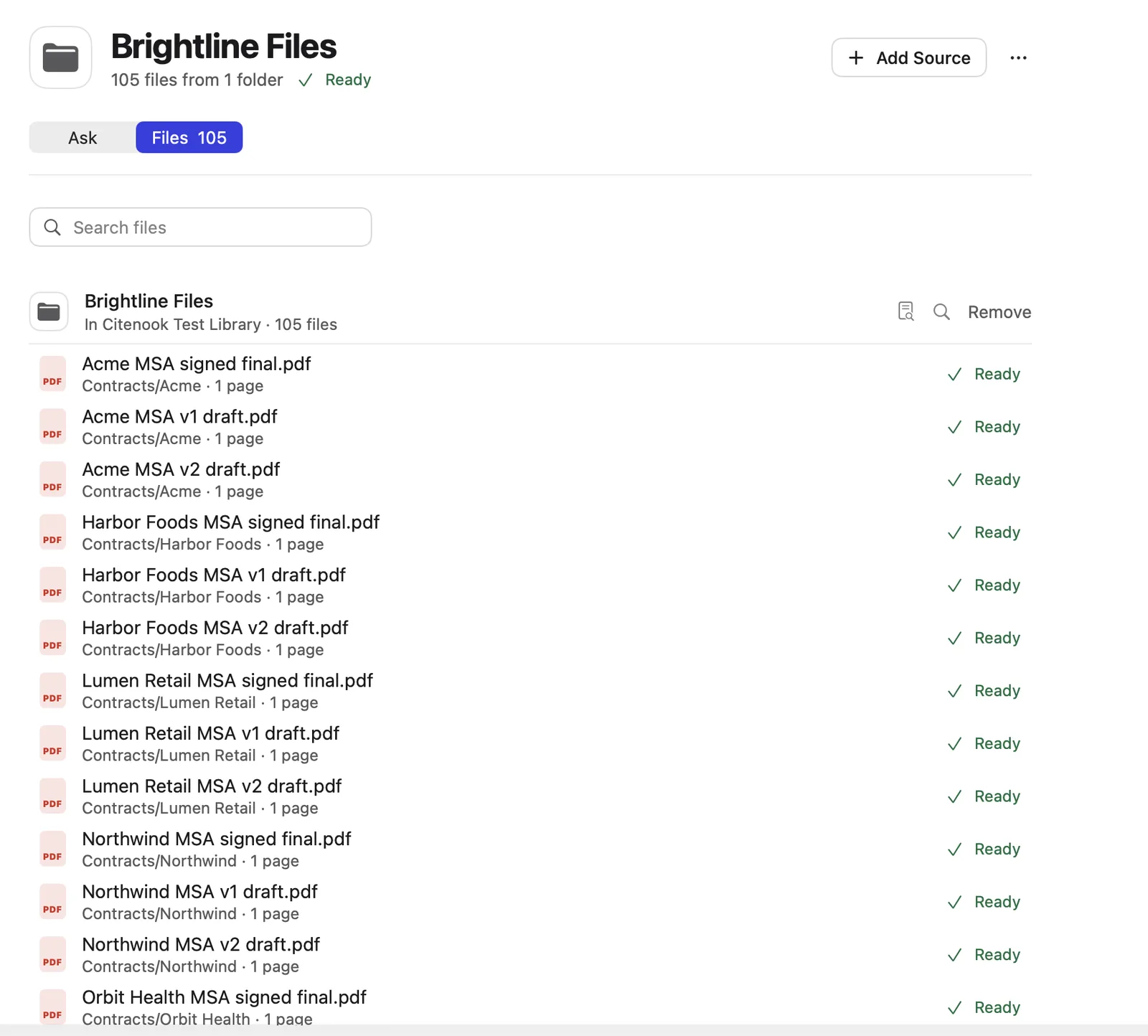
The trade-off: it's a Mac app, it costs $9.99 to $29.99 a month after a 30-day free month, and it doesn't have Gemini Notebook's Audio Overviews or sharing. Free and open-source tools like AnythingLLM also have no source limit, with more setup.
Which workaround fits?
- A few files over the limit: merge the smallest ones, or remove what you don't need this week.
- Material that splits by topic: one notebook per topic.
- You're happy with Gemini Notebook and need room: Google AI Plus or Pro.
- Hundreds or thousands of files that change often: an app that reads whole folders, so you don't rebuild anything when a file changes.
- Private files you'd rather not upload: an app that runs on your computer. Gemini Notebook works on copies uploaded to Google.
Plan ahead for a growing library
Libraries grow. A notebook that fits today may not fit after another quarter of invoices or another month of reading. Before you start merging and splitting, ask how often your files change and how many you'll have in a year. If the answer is "often" and "many more", a setup that reads folders and updates on its own will save you rebuilding notebooks later. If your material is fixed, like a finished course or one book project, merging into a few sources works well and stays that way.
A note on privacy
Whatever the limit, every source you add to Gemini Notebook is a copy uploaded to Google. Google says personal accounts' content isn't used to train its models unless you give feedback, and that feedback can be reviewed by people and kept up to 3 years. Work and school accounts have stricter terms, with no human review. If your files are confidential, weigh that before uploading, whichever workaround you choose. See Citenook vs Gemini Notebook for a full comparison.
Questions
How many sources can a NotebookLM notebook have?
On the free plan, 50 sources per notebook and 100 notebooks. Google AI Plus allows 100 sources, Pro 300, and Ultra 500 or 600, as checked on 5 October 2026.
Is NotebookLM the same as Gemini Notebook?
Yes. Google renamed NotebookLM to Gemini Notebook on 16 July 2026. Old links redirect to the new address.
Does merging PDFs hurt the answers?
The answers can still quote the text, but citations point to the merged file instead of the original document. Clear headings inside the merged file help you find where a quote came from.
Is there a NotebookLM alternative without a source limit?
Apps that run on your computer, like Citenook or AnythingLLM, read folders of files instead of counting sources. Citenook's Pro plan has no limit on files. See a NotebookLM alternative that works offline.
Sources, checked 5 October 2026: Gemini Notebook plans and limits, FAQ, usage limits, Google AI plans (US), the rename, privacy.